Showing posts with label eclipse. Show all posts

Monday, November 19, 2012

Exclude SVN directories from Eclipse search

If you perform search in Eclipse IDE and use SVN in your project then probably you have encountered the situation that the search tool looks also in .svn.

To fix this situation you can:
  1. Open Project settings
  2. Select Resoursec / Resource Filter
  3. Click Add... button
  4. Select exclude all, applies to folders, all children
  5. Type .svn
And that is all you need. The next search will no include svn directories.

Friday, August 31, 2012

Debug remote application with Eclipse

When you have remote application with enabled debug it is easy to connect Eclipse IDE and debug the application. Here is the list of steps for it:
  1. Open menu Run, select item Debug Configurations.
  2. In the left area of the appeared window double click on Remote Java Application
  3. Enter all required information about your server. In the screenshot below you can see configurations for the server configured here
  4. Click Apply or Debug

Monday, October 24, 2011

The most useful Eclipse Hot Keys

As you know hot keys may significantly increase you development speed. I believe every developer knows a list of the most used hot keys in his favorite IDE.
Because I usually work with Eclipse I have my own list with this IDE. Here is the list of the most useful commands:
  • Ctrl + Space - content assist
  • Ctrl + Shift + Space - context information
  • Ctrl + Shift + R - open resource
  • Ctrl + Shift + T - open type
  • Ctrl + Shift + G - find references in the workspace
  • Ctrl + H - search
  • Ctrl + L - go to line
  • Ctrl + W - close window
  • Ctrl + Shift + W - close all windows
  • Alt + Left - back history
  • Alt + Right - forward history
  • Ctrl + Shift + divide ('/') - collapse all
  • Ctrl + D - delete line
  • Ctrl + 8 - new editor in the same window, you can have as many as you wish
  • F2 - show tooltip
  • F3 or Ctrl + lmb click - open declaration
  • F4 - open type hierarchy
  • F12 - switch between source and design views
  • Ctrl + Shift + H - open type in hierarchy
  • Ctrl + E and Ctrl + Shift + E - switch to editor
  • Ctrl + Shift + Slash ('/') - add block comment
  • Ctrl + Shift + Backslash('\') - remove block comment
  • Ctrl + 7 or Ctrl + Slash ('/') or Ctrl + Shift + C - add/remove line comment
  • Ctrl + Shift + O - organize imports
  • Ctrl + Shift + F - format
  • Ctrl + Shift + I - inspect (use in debug)
  • Alt + Shift + O - mark occurances
  • Ctrl + O - quick outline
  • Alt + Shift + S - source quick menu

Sunday, October 23, 2011

Conditional breakpoints in Eclipse

There is a very useful feature in many IDEs, that makes bug fixing much easier. I'm talking about conditional breakpoints. But unfortunately in Eclipse IDE its location is quite unintuitive
So to put conditional breakpoint you should:
  1. Put usual breakpoint. It may be done by clicking on the left margin of the editor or pressing Ctrl+Shift+B while you're on the line.

    Figure 1. Breakpoint marker in the left margin of the editor
  2. Right click on the breakpoint marker int the editor's left margin and select "Breakpoint properties..."
  3. In the appeared window tick "Conditional" and enter your condition in the editor. Note that key assist is available in this editor. 
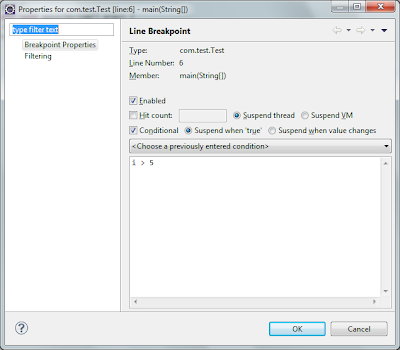
  4. Figure 2. Breakpoint properties window configured for conditional breakpoint
    • If you want to stop every time expression returns true then select "Suspend when 'true'"
    • If you want to stop only when expression changes its value then select "Suspend when value changes"
  5.  Press OK. Note the breakpoint marker has changed.

Figure 3. Conditional breakpoint marker in the left margin of the editor